
In a world overflowing with AI agents, developer tools, and copilots, it’s rare for a new platform to truly make a mark. OpenClaw (formerly Moltbot and Clawdbot) is one of those rare exceptions.
Unlike ordinary chatbots, OpenClaw is a personal AI assistant that runs locally on your computer, remembers context across conversations, and can perform real tasks—from managing files to controlling your browser—while keeping your data private.
Fully open-source and highly customizable, it lets you bring your own AI models and API keys, giving you the power to automate workflows, boost productivity, and interact with your tools directly through chat.
Whether you’re a developer, a power user, or simply curious about AI, OpenClaw offers a glimpse into the next generation of personal AI assistants. This guide will explain what it is, how it works, and why it’s generating so much excitement in the tech community.
What is OpenClaw?
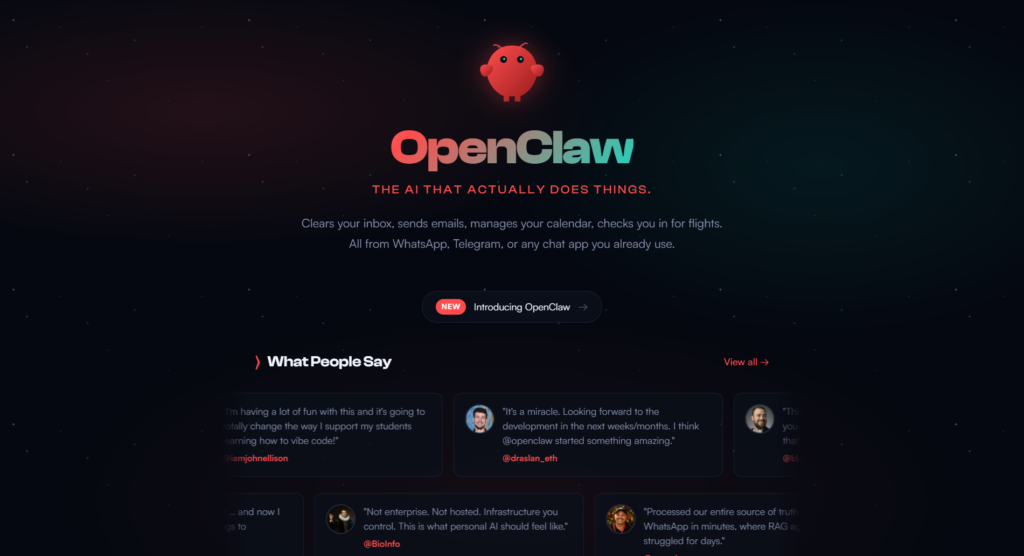
OpenClaw (formerly known as Moltbot and Clawdbot, and affectionately called “Molty” by its community) is a viral, open-source personal AI agent designed to act as a deeply integrated, high-context assistant on your local machine. Created by Peter Steinberger, the founder of PSPDFKit, OpenClaw has rapidly gained traction in the developer and AI community, earning 68,000+ GitHub stars and continuing to grow.
Unlike traditional AI chatbots that operate in isolation, OpenClaw functions as a local AI gateway, connecting powerful AI models directly with the files, applications, and tools you already use. This allows it to move beyond simple conversation and actively do things—such as writing code, managing files, automating workflows, and controlling browsers—while keeping sensitive data local and under user control.
Many users describe OpenClaw as “self-improving” or AGI-like because it can autonomously extend its own capabilities. By writing and modifying code, OpenClaw can create new skills, automate repetitive tasks, adapt to user behavior, and retain long-term memory of preferences, making it feel increasingly personalized over time.
OpenClaw GitHub
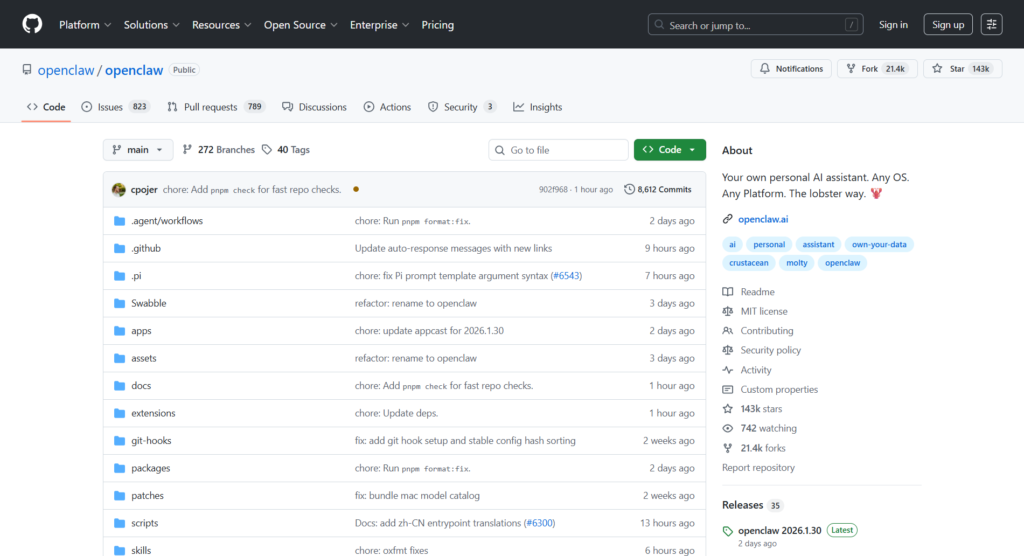
OpenClaw is fully open source and actively developed on GitHub. The repository contains the core engine, documentation, installation guides, and community-contributed extensions. Its rapid growth in GitHub stars reflects strong interest from developers, automation enthusiasts, and AI researchers who value transparency, extensibility, and local-first AI workflows.
OpenClaw Full Tutorial: Installation, Setup & Real Automation Use
What You Need Before Setup
Before setting up OpenClaw, make sure you have the following in place. These basics will help the installation go smoothly.
We assume that:
- You have an active Telegram account (this will be used to interact with your bot)
- You’re comfortable using the terminal or command line for basic tasks
- Node.js is already installed on your computer
Once you’ve confirmed these requirements, you’re ready to move on to the next step and begin setting up your OpenClaw bot.
OpenClaw Chrome Extension
The OpenClaw Chrome Extension allows the OpenClaw agent to directly control your existing Chrome tabs—your normal, everyday Chrome window—rather than launching a separate, OpenClaw-managed Chrome profile. This design makes browser automation feel more natural and less intrusive, since the agent works within the same browsing environment you already use.
Attaching or detaching OpenClaw from a tab is handled through a single Chrome toolbar button, giving you full control over when the agent has access. With one click, you can grant or revoke browser control instantly, keeping the workflow both flexible and secure.
How OpenClaw works
OpenClaw is a local-first personal AI agent that runs directly on your own machine—whether you’re using macOS, Windows, or Linux. Because it operates locally, OpenClaw keeps your data private by default and gives you full control over how the agent interacts with your system, your files, and your tools.
At its core, OpenClaw acts as a bridge between AI models and your real-world workflows, turning natural language instructions into concrete actions across your operating system, applications, and browser.
It Works With the AI You Prefer
OpenClaw can connect to different AI models, including ones that run entirely on your computer. This means you can choose what works best for you—whether that’s better privacy, lower cost, or higher performance.
It Remembers Things Over Time
Unlike most chatbots that forget everything once the conversation ends, OpenClaw can remember your preferences and past instructions. Over time, it learns how you like to work, so you don’t have to repeat yourself again and again.
This makes OpenClaw feel more like a long-term assistant than a one-off chat tool.
You Control How Much Access It Has
OpenClaw can be used in different ways, depending on how comfortable you feel:
- Safe mode: OpenClaw works in a limited space and can’t affect important parts of your computer.
- Full access mode: If you choose, OpenClaw can help manage files, run commands, and automate tasks for you.
You decide how much access to give—nothing happens without your permission.
It Can Help You on the Web Too
OpenClaw can also work with your web browser. For example, it can:
- Fill out online forms
- Collect information from websites
- Help with repetitive online tasks
This makes it useful for everyday work, research, and organization.
How to use OpenClaw safely
OpenClaw is powerful precisely because it runs on your system and can take real, irreversible actions—such as creating or deleting files, executing scripts, fetching data from the web, and responding to instructions through chat interfaces. That same power can become a security risk if you’re not careful about where, how, and with what permissions you run it.
This is not a flaw in OpenClaw itself. It’s a natural consequence of giving any AI agent direct access to system resources. Understanding these risks allows you to use OpenClaw responsibly while still benefiting from its advanced automation and productivity features.
Why Running OpenClaw Locally Requires Caution
When you run OpenClaw on your local machine or a virtual server, you’re effectively allowing a chat-based interface to trigger real system-level actions. Problems arise when the agent:
- Has access to sensitive directories (home folders, SSH keys, config files)
- Runs with elevated or root-level privileges
- Is connected to public or shared chat interfaces
- Receives vague, overly broad, or poorly scoped instructions
In these scenarios, OpenClaw may unintentionally modify files, overwrite important data, or expose information you never intended to share.
The key risk is not that OpenClaw is malicious. The risk is that it will do exactly what it’s told—even when the instruction is ambiguous, incomplete, or unsafe.
Local Machine vs. Virtual Server Risks
Risks on a Personal Computer
When running OpenClaw locally, misconfigured permissions or unclear instructions can result in:
- Overwriting or deleting important personal files
- Accidental exposure of API keys, tokens, or configuration files
- Unintended changes to active project directories
- Automation interfering with daily workflows or applications
While these issues are usually recoverable, they can still cause data loss or downtime.
Risks on a Virtual Server (VPS)
On a VPS or cloud server, the potential impact is much more serious:
- Corruption of running services or databases
- Accidental exposure of server-side data to the public
- Unintended access to production environments
- Security vulnerabilities affecting other applications on the same server
This is why treating OpenClaw as a “harmless chatbot” is a mistake. It’s better understood as a programmable assistant with real system access, similar to running scripts or automation tools—powerful, but requiring discipline.
Practical Safety Measures
To minimize risk while using OpenClaw, follow these practical safety measures:
- Run OpenClaw as a non-privileged user
Never run it as root or with unnecessary admin permissions. - Use a dedicated working directory
Restrict file access to a specific folder created solely for OpenClaw tasks. - Avoid public or shared chat integrations at first
Start with private, local-only interactions until you fully understand its behavior. - Be explicit with file operations
Clearly specify which files or directories it can read from or write to. - Test new capabilities in an isolated environment
Use a virtual machine, container, or disposable system when experimenting with new tools or automations. - Review instructions before execution
Treat OpenClaw commands the same way you’d review a shell script before running it.
Here’s a fully expanded and polished version of your OpenClaw use cases section, keeping it engaging and accessible for both personal and professional audiences:
OpenClaw Use Cases
With its rapidly growing ecosystem of integrations, OpenClaw can assist with a wide range of personal and professional tasks, turning your chat app into a powerful productivity hub. Some of the most popular use cases include:
1. Developer and Technical Workflows
OpenClaw is a boon for developers and IT professionals. It can automate debugging, DevOps, and code management, helping projects move forward even while you’re away. Key capabilities include:
- Direct integration with GitHub for repository management
- Scheduled tasks using cron jobs
- Triggering actions via webhooks to keep systems updated automatically
This means you can handle routine development tasks without manually running scripts, letting OpenClaw act as a reliable coding assistant.
2. Personal Productivity
OpenClaw helps you stay organized and on top of your day by connecting with tools like Apple Notes, Apple Reminders, Things 3, Notion, Obsidian, and Trello. From a single chat conversation on WhatsApp or Telegram, you can:
- Create and check off tasks
- Set reminders and deadlines
- Organize notes and ideas across multiple apps
It’s like having a personal assistant that consolidates all your productivity tools into one easy interface.
3. Web Automation and Browser Control
OpenClaw can take over repetitive browser tasks, saving you time and effort. Its browser integration allows you to:
- Fill out forms automatically
- Scrape and extract data from websites
- Navigate pages and collect information
This makes it ideal for research, data collection, and automating repetitive online processes without touching a mouse or keyboard.
4. Smart Home and Health Monitoring
OpenClaw integrates with smart home systems and health devices, letting you control your environment and track wellness from chat. Examples include:
- Adjusting Philips Hue lights or controlling Elgato devices
- Managing Home Assistant setups for home automation
- Pulling health data from wearables to track daily metrics like steps, sleep, or heart rate
You can interact with your home and health ecosystem seamlessly while chatting with your AI assistant.
5. Communication and Social Media
OpenClaw can handle communications across platforms, letting you stay on top of messages, emails, and social posts without leaving your chat app. Tasks include:
- Drafting and scheduling posts for Twitter/X and Bluesky
- Managing email workflows in Gmail
- Sending updates or notifications automatically
It effectively becomes a chat-based communication manager, keeping your online presence active and organized.
6. Media Creation and Creative Tasks
For creative professionals or hobbyists, OpenClaw can generate and manage multimedia content across apps and services:
- Generate images, videos, and AI media using Replicate
- Search and organize GIFs for presentations or social posts
- Control audio playback through Spotify or Sonos
Whether it’s creative brainstorming, content production, or media management, OpenClaw can help streamline the process.
OpenClaw is versatile: it can automate work, organize life, manage the web, control smart devices, handle communications, and assist with creative projects. By centralizing these capabilities into one chat-based interface, it turns your favorite messaging app into a powerful, AI-driven productivity hub.
Final Words
In short, OpenClaw is more than a chatbot—it’s a versatile, privacy-friendly assistant that brings AI directly into your workflows. Whether you want to automate routine tasks, organize projects, perform web searches, or manage smart devices, OpenClaw makes it possible from a single chat interface. With careful setup and proper permissions, it can save time, increase efficiency, and adapt to your preferences, giving you a powerful AI assistant that truly works alongside you.
FAQ
What does OpenClaw do?
OpenClaw is a local, chat-based AI assistant that runs on your own computer and helps you get real work done, not just answer questions. It can automate tasks like managing files, running commands, controlling your browser, and interacting with apps, all while remembering your preferences over time. You communicate with OpenClaw through familiar chat apps, and you stay in full control of what it can access, making it a powerful yet privacy-friendly personal AI helper.
Is openclaw safe?
OpenClaw is generally safe to use, but it’s important to understand how it works. Unlike a typical chatbot, OpenClaw can take real actions on your computer, like creating files, running scripts, or controlling your browser. That power makes it very useful—but it also means you need to be careful.
Is OpenClaw free?
Yes! OpenClaw itself is completely free and open source—you don’t need to pay to download or run the software.
The only costs come from the AI models you connect to it. For example, if you use paid AI services or APIs, those providers may charge based on usage. Otherwise, OpenClaw’s core features, integrations, and local operation are 100% free.
Is Moltbot now OpenClaw?
Yes — Moltbot has been renamed to OpenClaw. The project originally started as Moltbot (and was sometimes called Clawdbot or Molty by the community), but the name has since been officially changed to OpenClaw. It’s the same core tool and vision — a local, extensible AI agent — just under a new name that reflects its broader capabilities and direction.
How to let OpenClaw perform web searches
OpenClaw can search the web for you, but to do that, it needs an API key from a web search service. Here’s how to set it up:
- Go to the Brave Web Search API console.
- Open the API tab in your account.
- Copy your API key from the console.
- Send the API key to OpenClaw through your Telegram chat with the bot.
Once your bot has the API key, it can perform web searches on your behalf. This gives OpenClaw more capabilities to gather information, check facts, and complete the tasks you ask it to do.